Read the prompts in your current session
Look at the prompts beside the ball before taking a shot. The shot screen shows INSIDE FOOT CURLED, a curved trajectory line, an angle readout, and a percentage meter. Use your current device prompts to find the input for each adjustment and the input that kicks the ball. A screenshot cannot give you a complete keyboard, controller, or touch-control map.
One public player duel includes a spoken tip that Q and E adjust the angle. Treat that as a useful keyboard lead to test, not a promise that every current platform maps those keys the same way. If the keys do nothing, look at the live prompt rather than repeatedly pressing them during a timed turn.
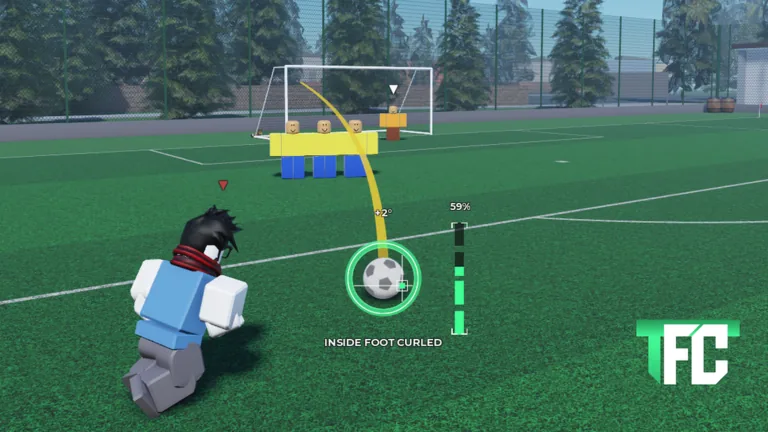
Separate four jobs on the shot screen
| Visible control area | What to check before shooting |
|---|---|
| Shot label | Which shot type is currently selected? |
| Trajectory line | Does the planned route clear the wall and approach the goal? |
| Angle value | How far did the current setting move from your previous attempt? |
| Percentage meter | What power setting will you compare with the next attempt? |
The route and target should come before the number. A higher meter reading does not fix a line that points into the defensive wall. An angle change does not help if the new route misses the entire goal. Use the interface as a checklist rather than treating it as several sliders to maximize.
A quick control-learning drill
Enter a simple setup with the same ball position and wall. Make a small angle change and watch the guide. Return to the baseline, then change the meter and watch whether the display changes as expected. Test the selected shot type only after you can recognize the effect of the first two changes. Finally, take a shot and compare the ball’s route with the preview.
This drill answers a practical question for each input. If the angle changes the displayed arc, you have identified the correct control. If a button changes the shot label instead, you have found a different action. The exact key or controller binding is less important than correctly recognizing what the current interface says it is changing.
For touch controls, look for on-screen buttons, draggable indicators, or an in-game help prompt. No first-party touch mapping was provided in the official description or images, so do not assume that a keyboard instruction transfers to a phone. A brief untimed test is faster than guessing during a duel.
Keep the shot reproducible
Before taking a kick, note three things: the selected shot label, angle shown, and percentage meter. After the kick, identify the result. If it hits the wall, change the route while holding the other settings close. If it goes wide, make a smaller target correction. If a goalkeeper saves it, consider a different reachable lane.
The player duel footage shows why this matters. A countdown encourages hurried adjustments, but a known baseline gives you time to make one choice. Practice the controls without pressure, then bring that routine to the challenge.
FAQ
Are Q and E the official angle controls?
A player says those keys adjust angle in a public TFC video. Check the live keyboard prompts, since the official game materials here do not document a full binding list.
What does the percentage meter mean?
It visibly represents the selected shot power setting. Use it to compare attempts; no universal ideal percentage is established.
Is the yellow line the final ball path?
It is a useful visible guide for planning. Compare it with the actual shot instead of assuming it guarantees a score.
Do mobile players use the same controls?
Use the touch prompts in your current session. The official images do not establish a touch-control mapping.